Tower Defense Simulator Thumbnail Maker
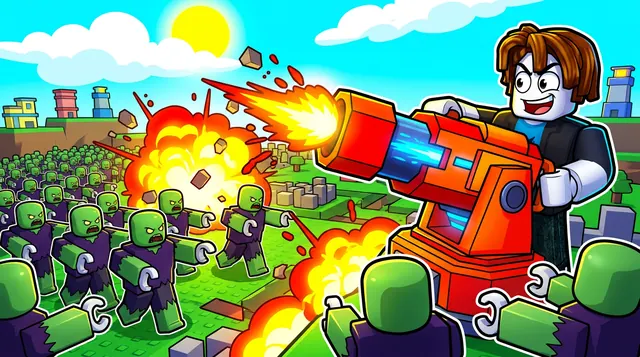
A Tower Defense Simulator thumbnail shows the war for the map — towers blasting waves of enemies, explosions, and a hero unit front and center. BloxGFX generates that action-packed look from a prompt in seconds: describe the towers, the enemies, and the chaos, then download a click-ready 1920×1080 thumbnail.
Updated · By the BloxGFX team — Roblox creators.
3 free credits to start · no credit card
Roblox thumbnails made with BloxGFX
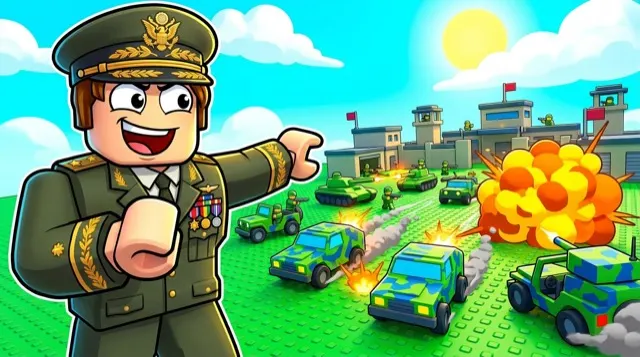
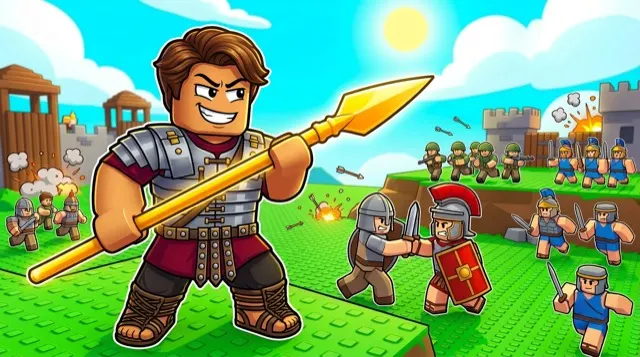
The first one was generated in BloxGFX from the example Tower Defense Simulator prompt on this page. The other two were made for other Roblox games.
How to make a tower defense simulator thumbnail with AI
- 1Open the BloxGFX generator and pick the 16:9 thumbnail format.
- 2Describe your Tower Defense Simulator scene — try a prompt like "powerful tower unit firing at a horde of zombies, explosions, dramatic battlefield, intense action, bold colors".
- 3Optionally upload a reference image (your avatar, or a screenshot from Tower Defense Simulator) to guide the AI.
- 4Generate, then refine with edit prompts until it pops at search-result size.
- 5Download the 1920×1080 PNG and upload it to your experience on the Creator Hub.
Tips for better results
- Show the battle — towers firing, enemies swarming, and explosions sell the tower-defense action at a glance.
- Put a standout tower or boss enemy up front as the focal point to signal a new unit or update.
- Lead with emotion and action — a bold focal character and high contrast win the click.
Tower Defense Simulator thumbnail prompt ideas
Paste one into the generator and tweak the details to match your video or update.
Boss wave
massive boss zombie stomping down a path toward a line of glowing defence towers, explosions, dramatic sky, roblox style
New tower
powerful new defence tower unit firing a huge laser beam, enemies flying back, epic glow, dark battlefield
Last-second win
roblox base with one health point left, towers firing everything at a final enemy, red warning glow, intense action
Tower Defense Simulator thumbnail style guide
- Colour palette
- Battlefield greys and greens lifted by bright muzzle flashes and explosions.
- Focal subject
- One standout tower or boss — not the whole map.
- Avoid
- Top-down map views; they are accurate to gameplay but unreadable at thumbnail size.
FAQ
How do I make a Tower Defense Simulator thumbnail?
Describe the battle in BloxGFX — the towers, enemies, and explosions — and it generates a finished 1920×1080 thumbnail in seconds.
Can I feature a specific tower or boss?
Yes — name it in your prompt and add a reference image so the unit or boss matches the one you're highlighting.
How do I highlight a new tower in a TDS thumbnail?
Put the new tower or boss up front, mid-blast against a wave of enemies with explosions behind, so the update and the action are obvious.
Make yours in seconds
Built by Roblox devs, for Roblox devs. No Blender, no designer.
Try BloxGFX free