Doors Thumbnail Maker
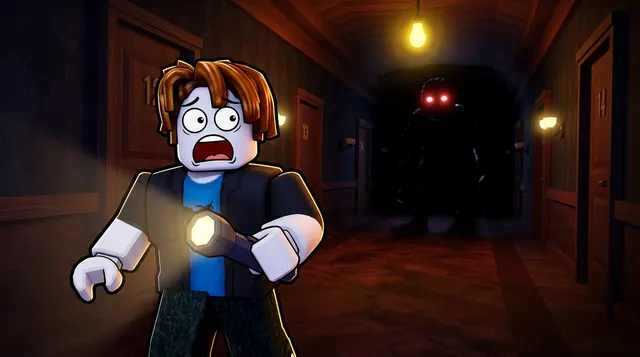
A Doors thumbnail is pure horror — a dark hotel corridor, a lurking entity, and a jump-scare moment lit by a single flickering light. BloxGFX generates that spooky look from a prompt in seconds: describe the entity, the hallway, and the dread, then download a click-ready 1920×1080 thumbnail.
Updated · By the BloxGFX team — Roblox creators.
3 free credits to start · no credit card
Roblox thumbnails made with BloxGFX
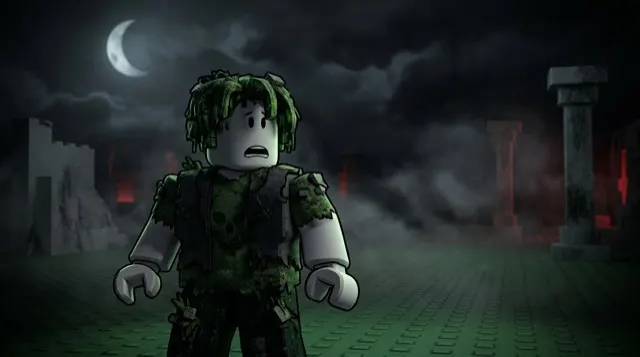
The first one was generated in BloxGFX from the example Doors prompt on this page. The other two were made for other Roblox games.

How to make a doors thumbnail with AI
- 1Open the BloxGFX generator and pick the 16:9 thumbnail format.
- 2Describe your Doors scene — try a prompt like "dark hotel hallway with a terrifying entity emerging from the shadows, single flickering light, glowing eyes, horror atmosphere".
- 3Optionally upload a reference image (your avatar, or a screenshot from Doors) to guide the AI.
- 4Generate, then refine with edit prompts until it pops at search-result size.
- 5Download the 1920×1080 PNG and upload it to your experience on the Creator Hub.
Tips for better results
- Darkness is the point — a dim corridor, deep shadows, and one light source build the horror tension.
- A glimpse of an entity (glowing eyes, a face in the dark) as the focal point creates an irresistible scary hook.
- Lead with emotion and action — a bold focal character and high contrast win the click.
Doors thumbnail prompt ideas
Paste one into the generator and tweak the details to match your video or update.
Entity encounter
terrified roblox player hiding in a wardrobe while a huge dark entity with glowing eyes passes the crack in the door
Lights out
long hotel corridor with lights flickering out one by one, a shadowy shape rushing toward the camera, player running
Reaching the end
roblox player sprinting toward a glowing exit door as a monstrous shadow reaches from behind, intense horror lighting
Doors thumbnail style guide
- Colour palette
- Near-black with warm lamp yellows and one cold accent for the entity.
- Focal subject
- A frightened face and a single threat, both readable in the dark.
- Avoid
- Making it too dark to read; lift the face and the threat so they survive a phone screen.
FAQ
How do I make a Doors thumbnail?
Describe the horror scene in BloxGFX — the entity, the dark hallway, and the lighting — and it generates a finished 1920×1080 thumbnail in seconds.
Can I match the creepy Doors atmosphere?
Yes — ask for dark, moody lighting, deep shadows, and a lurking entity, and the AI builds that suspenseful horror look.
How do I make a Doors thumbnail scary?
Keep it dark with a single light source and deep shadows, and show just a glimpse of an entity — glowing eyes or a face in the gloom. The suggestion of a scare beats revealing everything.
Make yours in seconds
Built by Roblox devs, for Roblox devs. No Blender, no designer.
Try BloxGFX free