Brookhaven Thumbnail Maker
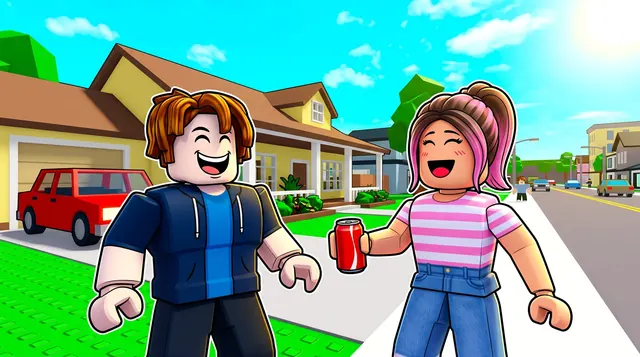
A Brookhaven thumbnail leans into cozy roleplay life — characters at home, in cars, at school, or out with friends around the town, in bright friendly daylight colors. BloxGFX turns that into a polished 1920×1080 thumbnail from a prompt: describe the scene, the characters, and the vibe, then download it ready to upload.
Updated · By the BloxGFX team — Roblox creators.
3 free credits to start · no credit card
Roblox thumbnails made with BloxGFX
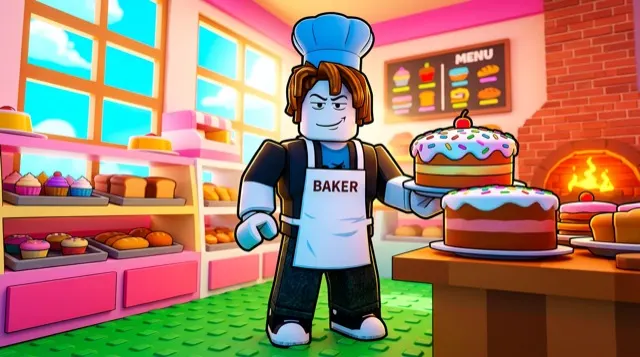
The first one was generated in BloxGFX from the example Brookhaven prompt on this page. The other two were made for other Roblox games.

How to make a brookhaven thumbnail with AI
- 1Open the BloxGFX generator and pick the 16:9 thumbnail format.
- 2Describe your Brookhaven scene — try a prompt like "two roblox friends laughing outside a suburban house, bright sunny town street, car in the driveway, warm cheerful colors".
- 3Optionally upload a reference image (your avatar, or a screenshot from Brookhaven) to guide the AI.
- 4Generate, then refine with edit prompts until it pops at search-result size.
- 5Download the 1920×1080 PNG and upload it to your experience on the Creator Hub.
Tips for better results
- Brookhaven is about everyday roleplay moments — homes, cars, family and friends — so a warm, well-lit slice-of-life scene fits better than action.
- Bright friendly colors and a clear story beat (a party, a new house, some drama) make roleplay thumbnails feel inviting.
- Lead with emotion and action — a bold focal character and high contrast win the click.
Brookhaven thumbnail prompt ideas
Paste one into the generator and tweak the details to match your video or update.
New house tour
roblox character proudly presenting a huge modern mansion with a pool, sunny suburban street, sparkle effects, excited face
Roleplay drama
two roblox characters arguing in a kitchen while a third peeks through the doorway shocked, bright daylight, comic expressions
Secret / hidden room
roblox character discovering a glowing secret room behind a bookshelf in a cozy house, mysterious light spilling out, surprised face
Brookhaven thumbnail style guide
- Colour palette
- Clean daylight colours — sky blue, warm whites and soft greens — the friendly look of the town itself.
- Focal subject
- A clear story beat between characters: a reaction, a reveal, a moment of drama.
- Avoid
- Empty scenery shots. Roleplay thumbnails earn clicks with people and emotion, not just houses.
FAQ
How do I make a Brookhaven thumbnail?
Describe the roleplay scene in BloxGFX — the characters, the house or town setting, and the mood — and it generates a finished 1920×1080 thumbnail in seconds.
Can I match Brookhaven's cozy style?
Yes — ask for bright daylight, friendly colors, and a suburban town setting in your prompt, and reuse a reference image to keep your characters consistent.
What scenes work best for a Brookhaven thumbnail?
Everyday roleplay moments — a new house, a party, a family scene, or a little drama — in bright daylight. A clear story beat pulls more clicks than a static pose.
Make yours in seconds
Built by Roblox devs, for Roblox devs. No Blender, no designer.
Try BloxGFX free