Grow a Garden Thumbnail Maker
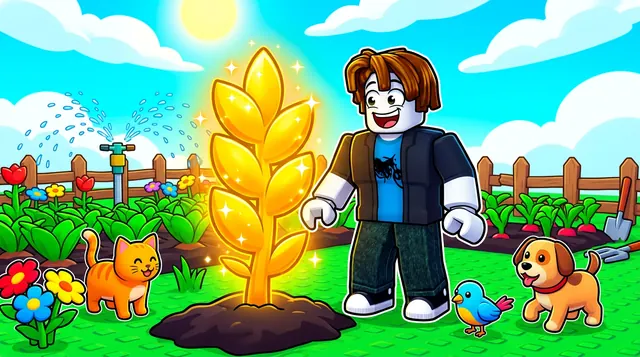
A Grow a Garden thumbnail shows off the fun of farming — lush plants, giant crops, pets, and sprinklers in a bright, wholesome garden. BloxGFX generates that cheerful look from a prompt in seconds: describe the crops, the garden, and the standout item, then download a click-ready 1920×1080 thumbnail.
Updated · By the BloxGFX team — Roblox creators.
3 free credits to start · no credit card
Roblox thumbnails made with BloxGFX
The first one was generated in BloxGFX from the example Grow a Garden prompt on this page. The other two were made for other Roblox games.


How to make a grow a garden thumbnail with AI
- 1Open the BloxGFX generator and pick the 16:9 thumbnail format.
- 2Describe your Grow a Garden scene — try a prompt like "giant glowing golden crop in a lush green garden, sprinklers and pets, bright sunny sky, wholesome cartoon style".
- 3Optionally upload a reference image (your avatar, or a screenshot from Grow a Garden) to guide the AI.
- 4Generate, then refine with edit prompts until it pops at search-result size.
- 5Download the 1920×1080 PNG and upload it to your experience on the Creator Hub.
Tips for better results
- Show the payoff: a giant, glowing, or rare crop as the focal point tells players what's new or valuable.
- Bright greens, sunny light, and a tidy garden scene keep the wholesome, satisfying farming vibe.
- Lead with emotion and action — a bold focal character and high contrast win the click.
Grow a Garden thumbnail prompt ideas
Paste one into the generator and tweak the details to match your video or update.
Rare mutation
giant rainbow-shimmering crop towering over a tiny roblox farmer, lush garden, sparkles, amazed face, bright sunny sky
Garden makeover
before and after split of a bare dirt plot and a lush overflowing garden full of glowing crops, bright cheerful colours
Weather event
magical storm over a garden with glowing rain making crops turn golden, roblox farmer looking up in awe
Grow a Garden thumbnail style guide
- Colour palette
- Rich greens and sunny yellows, with gold or rainbow highlights reserved for the rare crop.
- Focal subject
- The payoff crop — oversized, glowing, or mutated — dwarfing the player.
- Avoid
- Rows of identical small plants; nothing reads as special at thumbnail size.
FAQ
How do I make a Grow a Garden thumbnail?
Describe the garden scene in BloxGFX — the crops, pets, and bright setting — and it generates a finished 1920×1080 thumbnail in seconds.
Can I highlight a rare crop or pet?
Yes — name it in your prompt ("giant golden pumpkin", "rare pet") and add a reference image to match the in-game item exactly.
How do I show a new crop or update in a Grow a Garden thumbnail?
Make the new or rare crop the giant, glowing focal point and keep the garden around it tidy and bright, so players instantly see what's new.
Make yours in seconds
Built by Roblox devs, for Roblox devs. No Blender, no designer.
Try BloxGFX free